Trial Balance
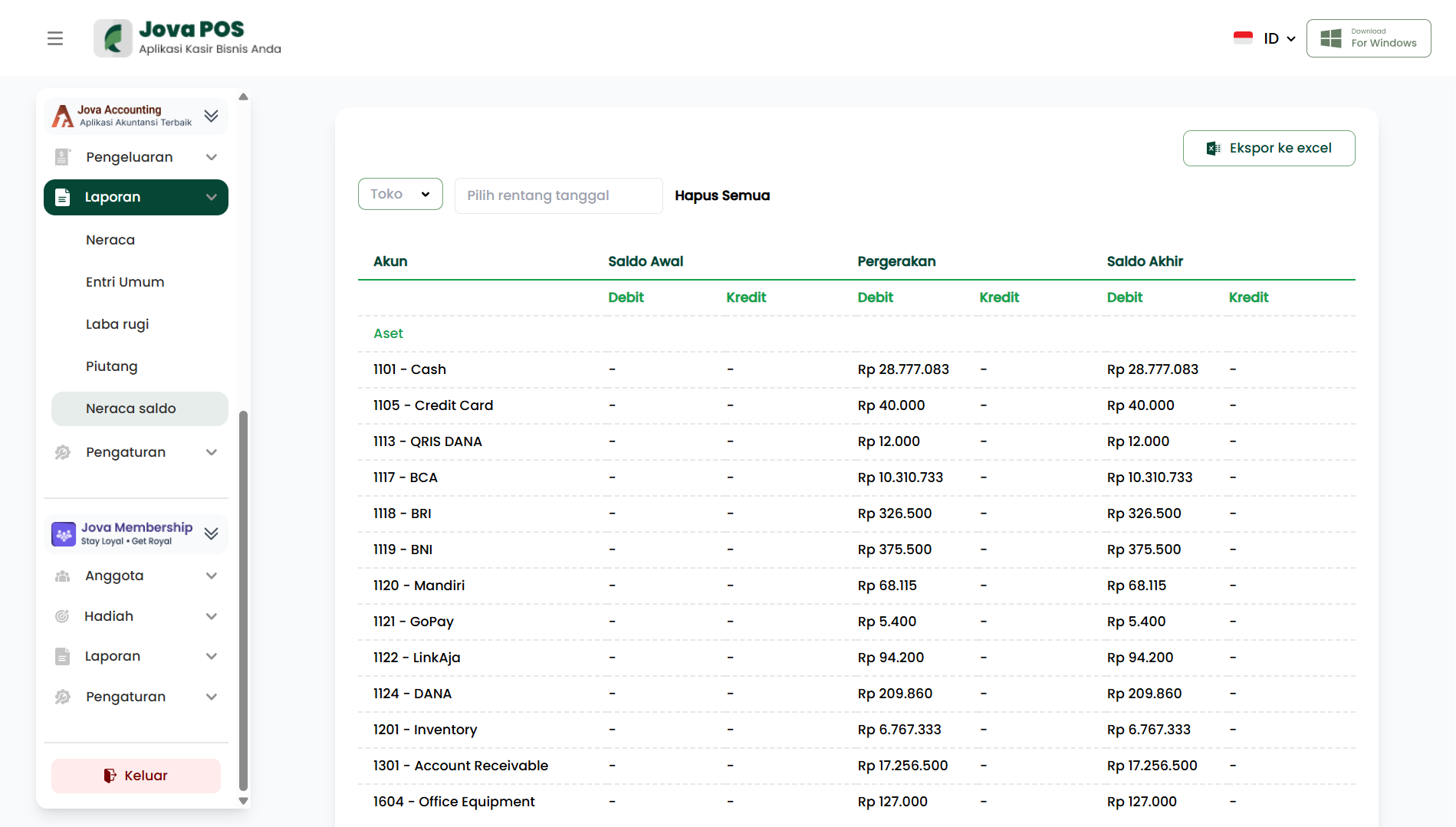
The Trial Balance menu is used to view the balance position of each account in the accounting system for a specific period. This report records account balance movements based on previously recorded transaction data.
1. Opening the Trial Balance report
- Open the Reports menu in the sidebar.
- Click Trial Balance.
After the page opens, the system displays the trial balance report based on the selected account data and period.
2. Setting report filters
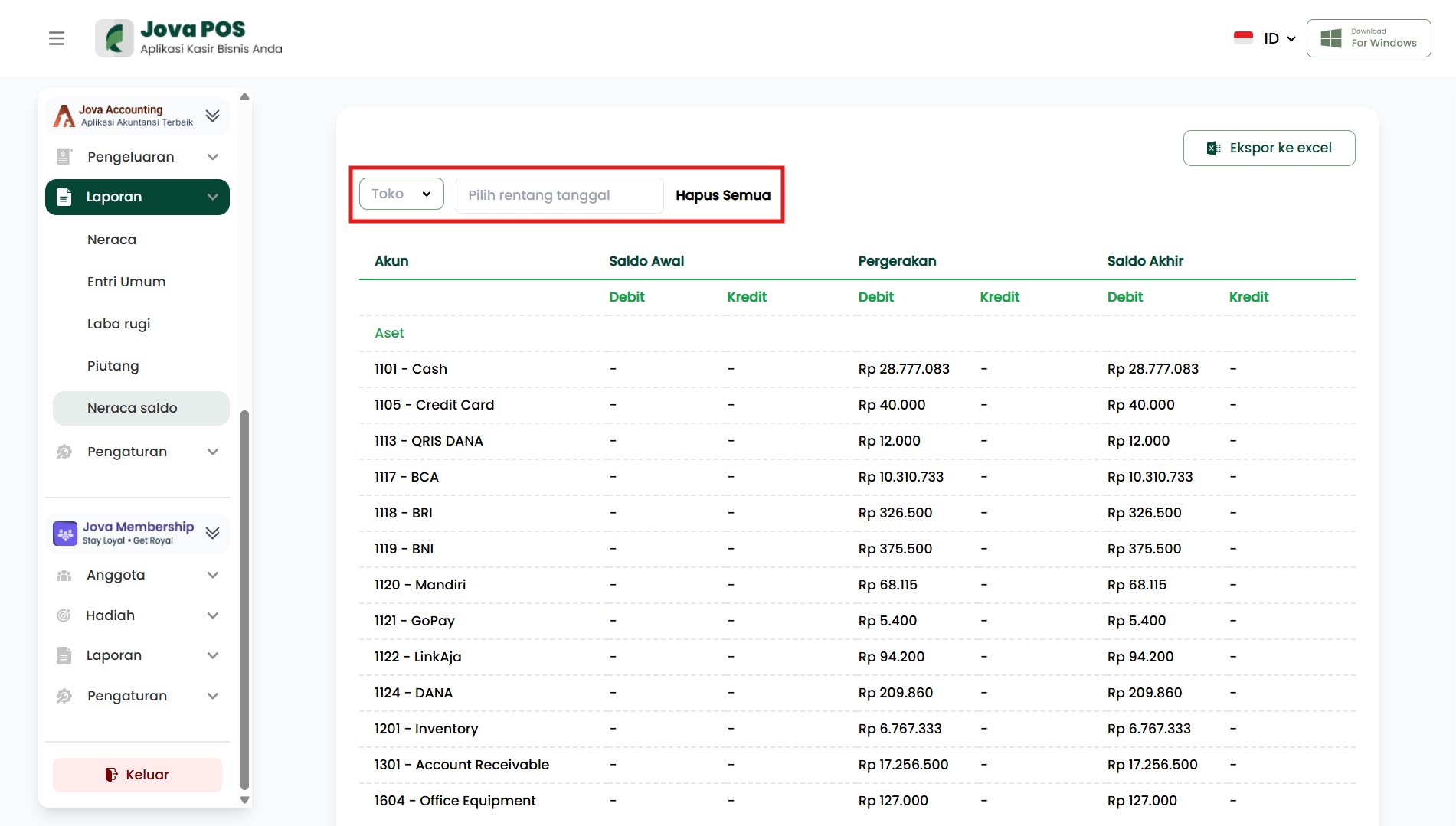
Filters are located at the top of the page; you can adjust the report display as needed.
-
Store
Select the store/outlet for which you want to view the trial balance report. -
Select date range
Specify the report period, e.g., 1 month or specific dates. -
Clear All
Resets filters to their initial state so the report displays default data.
Tips:
- If the report figures seem incorrect, double-check the selected store and date range.
- Use the same date range when comparing reports between stores.
3. Understanding Trial Balance report sections
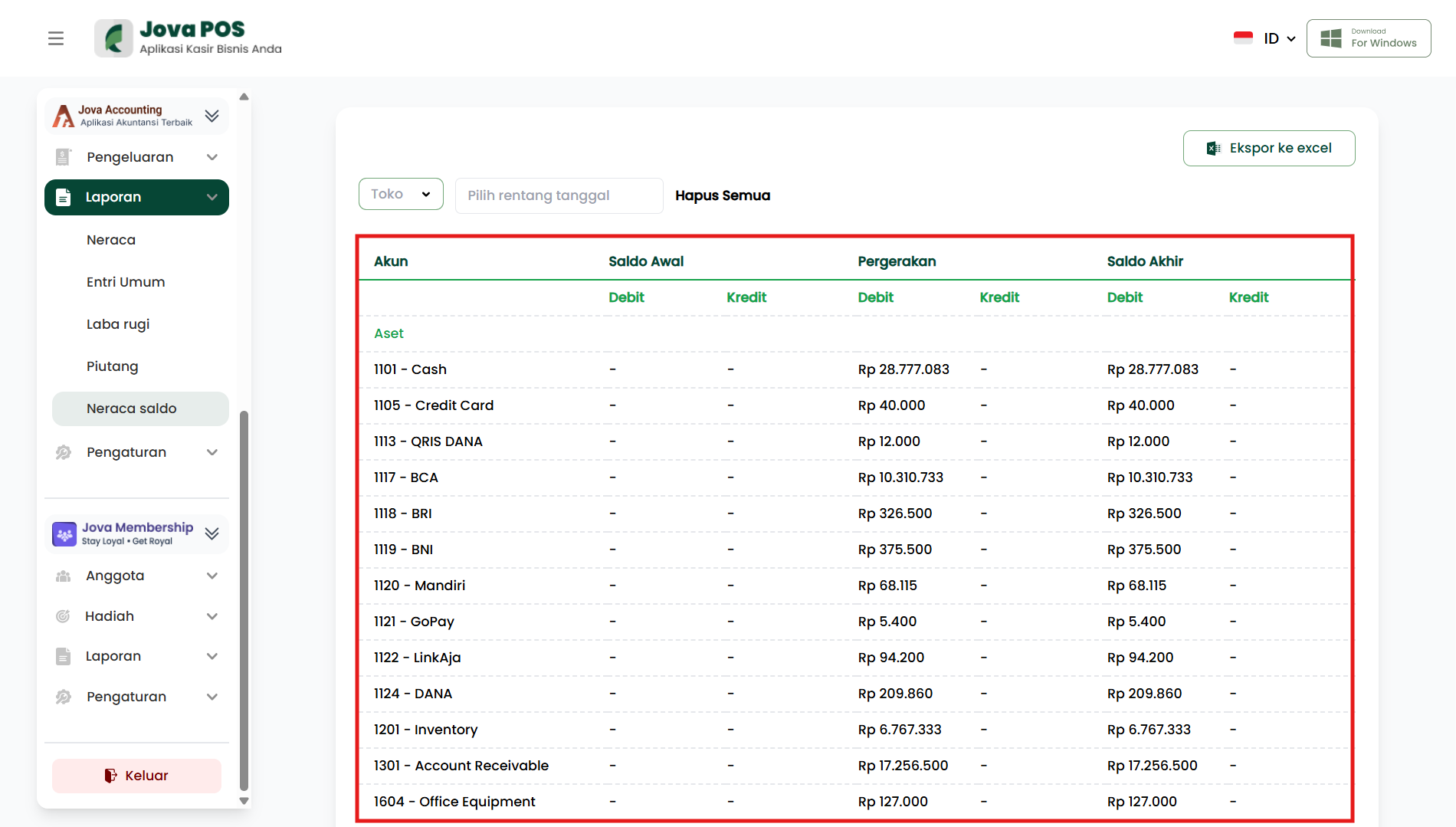
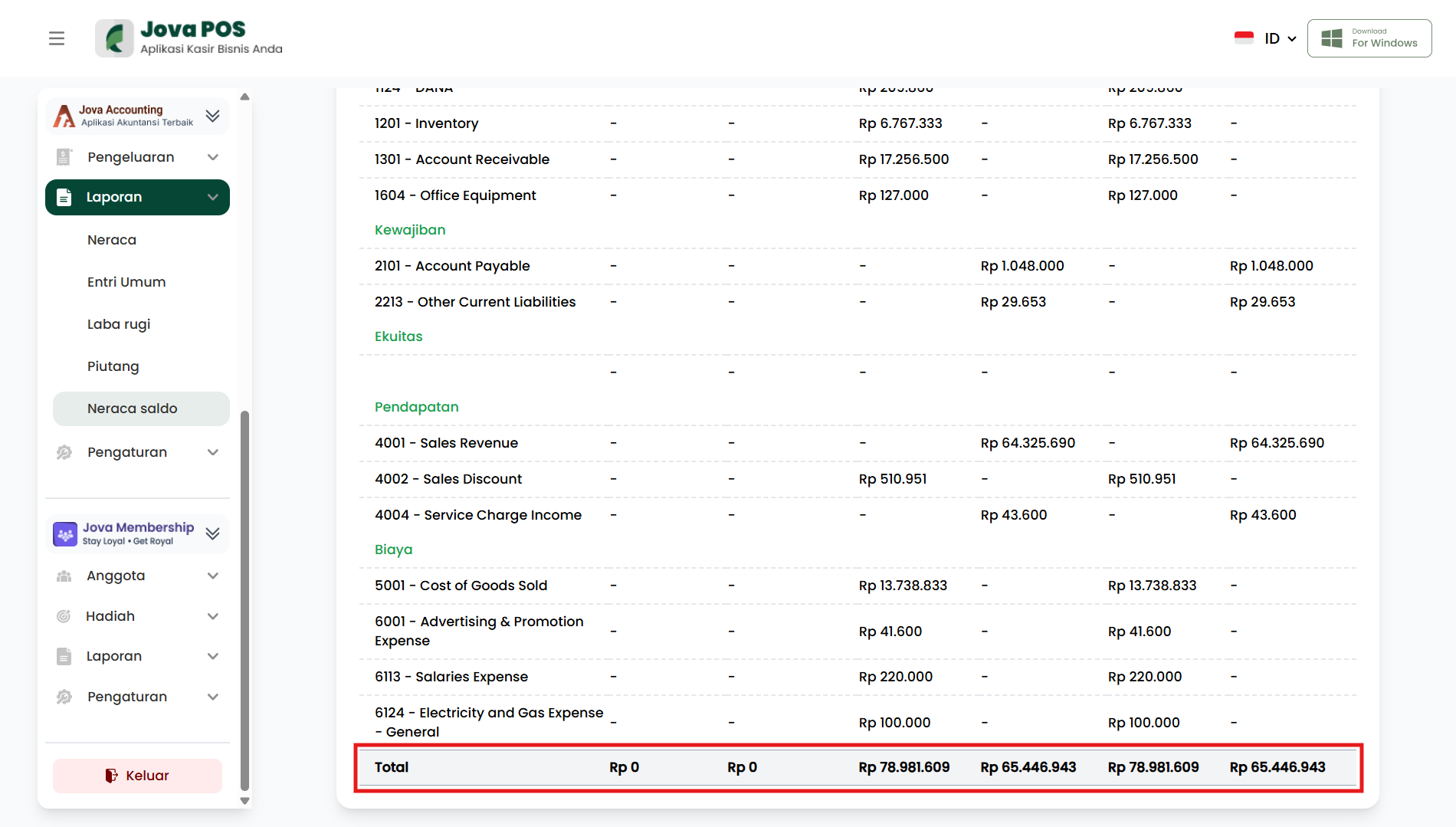
The trial balance report on this page is divided into several main sections that can be viewed in detail, including accounts related to Assets, Liabilities, Equity, Revenue, and Expenses.
3.1 Assets
The Assets section shows the value of wealth owned by the store, including cash, inventory, receivables, and other accounts.
-
1101 - Cash
Available cash balance. -
1201 - Inventory
The value of goods inventory owned by the store. -
1301 - Account Receivable
Receivables to be received from customers.
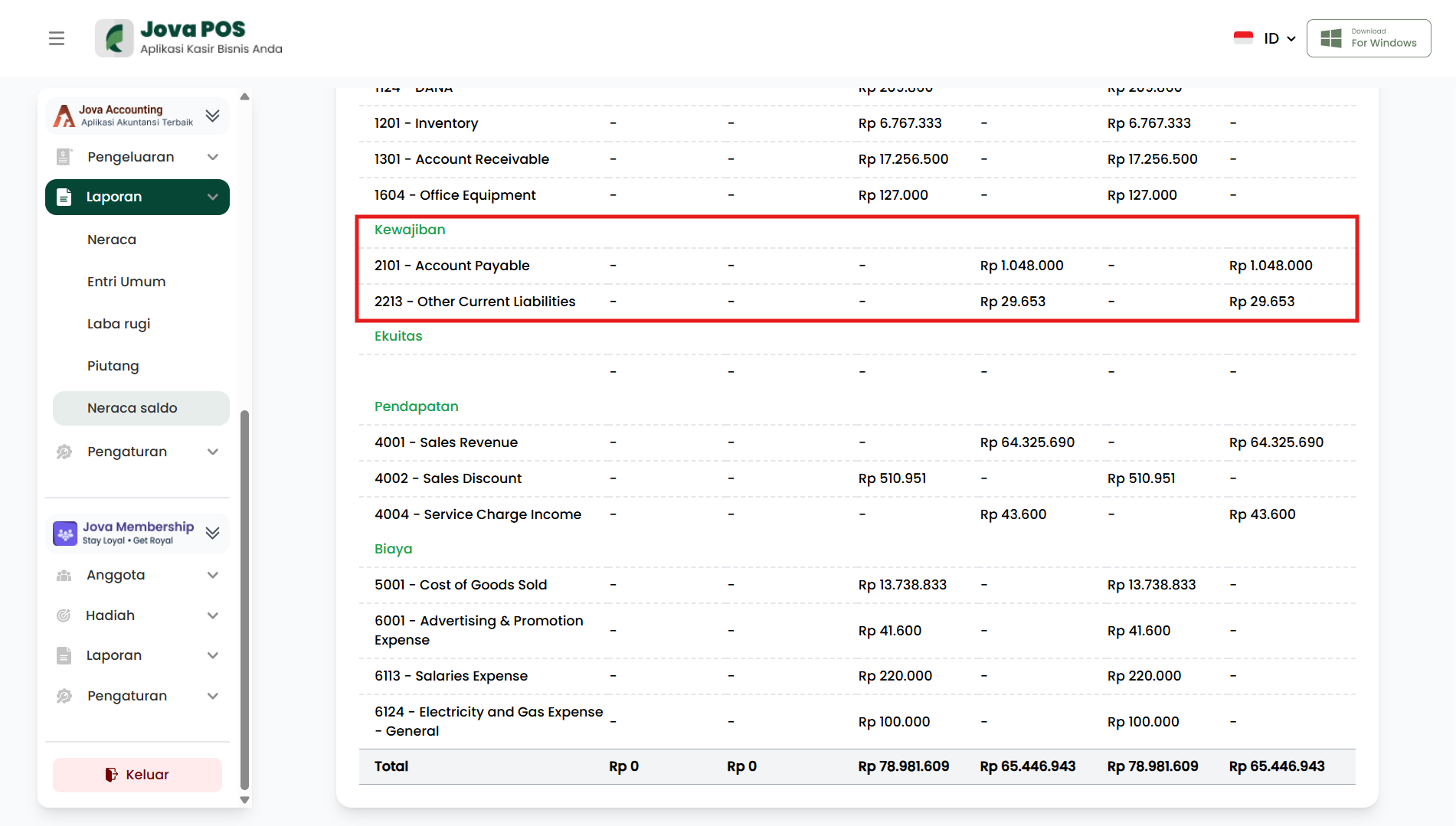
3.2 Liabilities
The Liabilities section shows the balance of debts that must be paid by the store, both short-term and long-term.
-
2101 - Account Payable
Debts to be paid to suppliers. -
2213 - Other Current Liabilities
Other current liabilities.
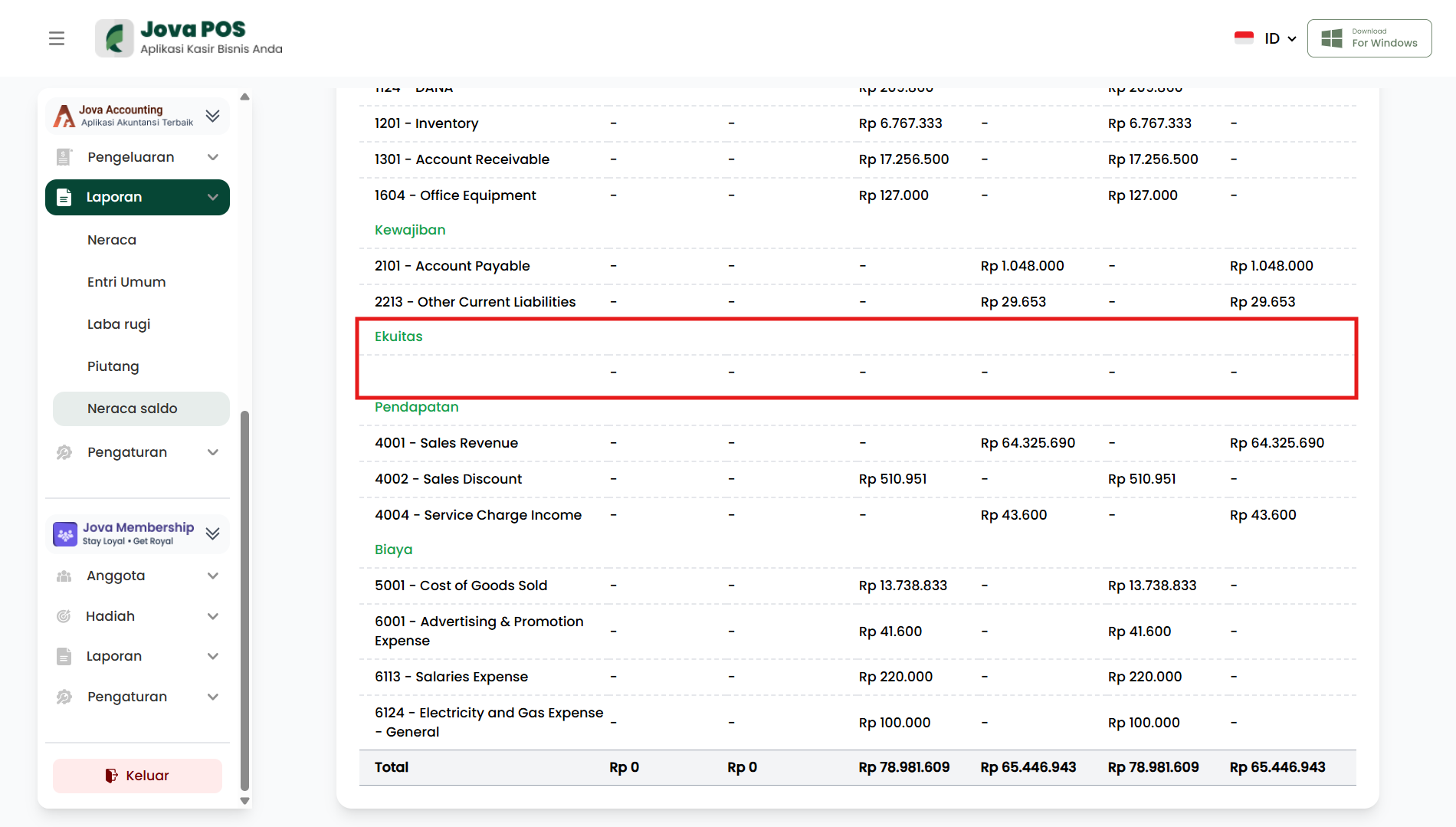
3.3 Equity
The Equity section includes the capital balance owned by the store owner.
- Equity
The equity balance owned by the store owner.
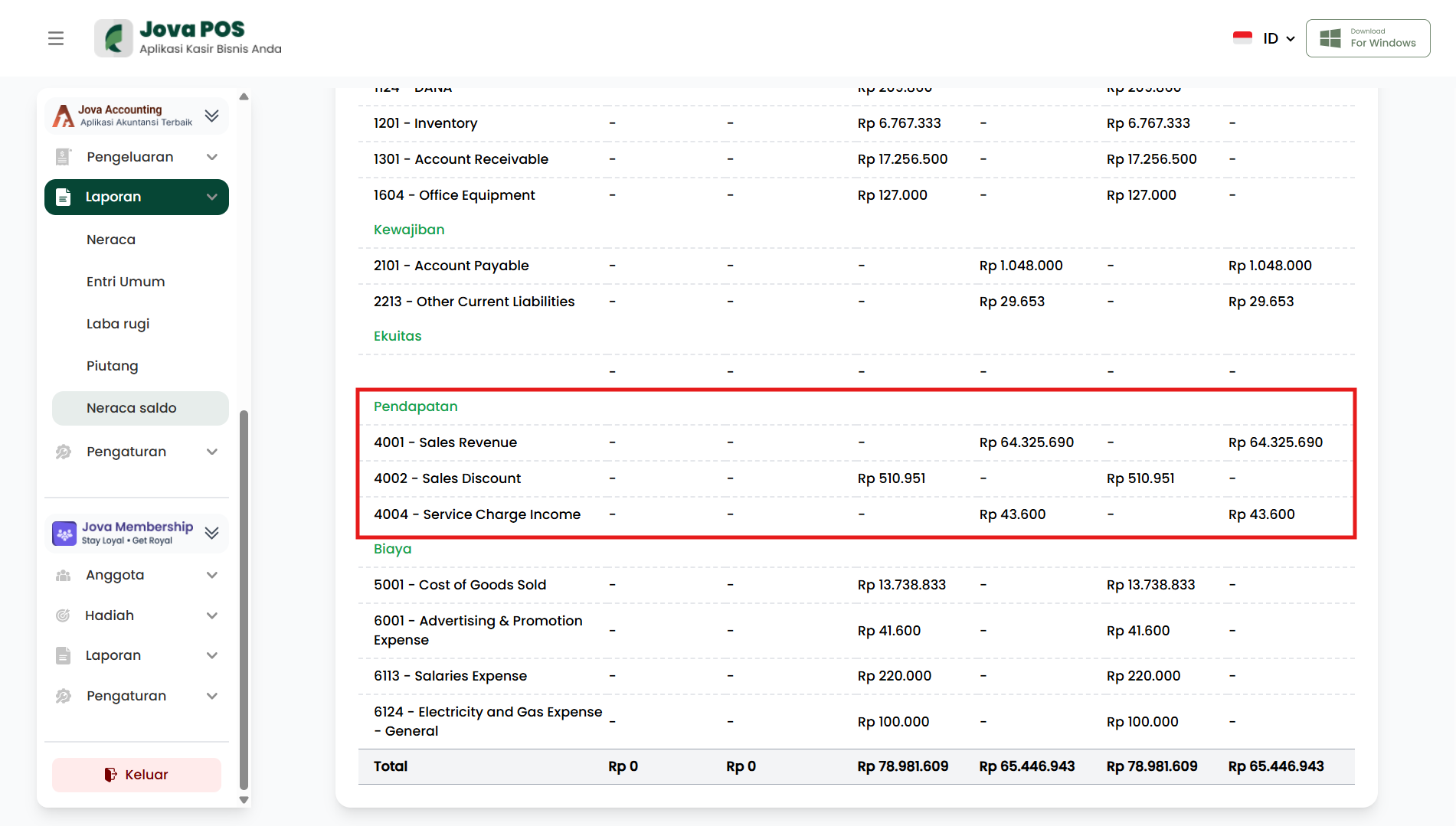
3.4 Revenue
The Revenue section includes all income received by the store during a specific period.
-
4001 - Sales Revenue
Income from product sales. -
4002 - Sales Discount
Discounts given on sales. -
4004 - Service Charge Income
Income from service fees.
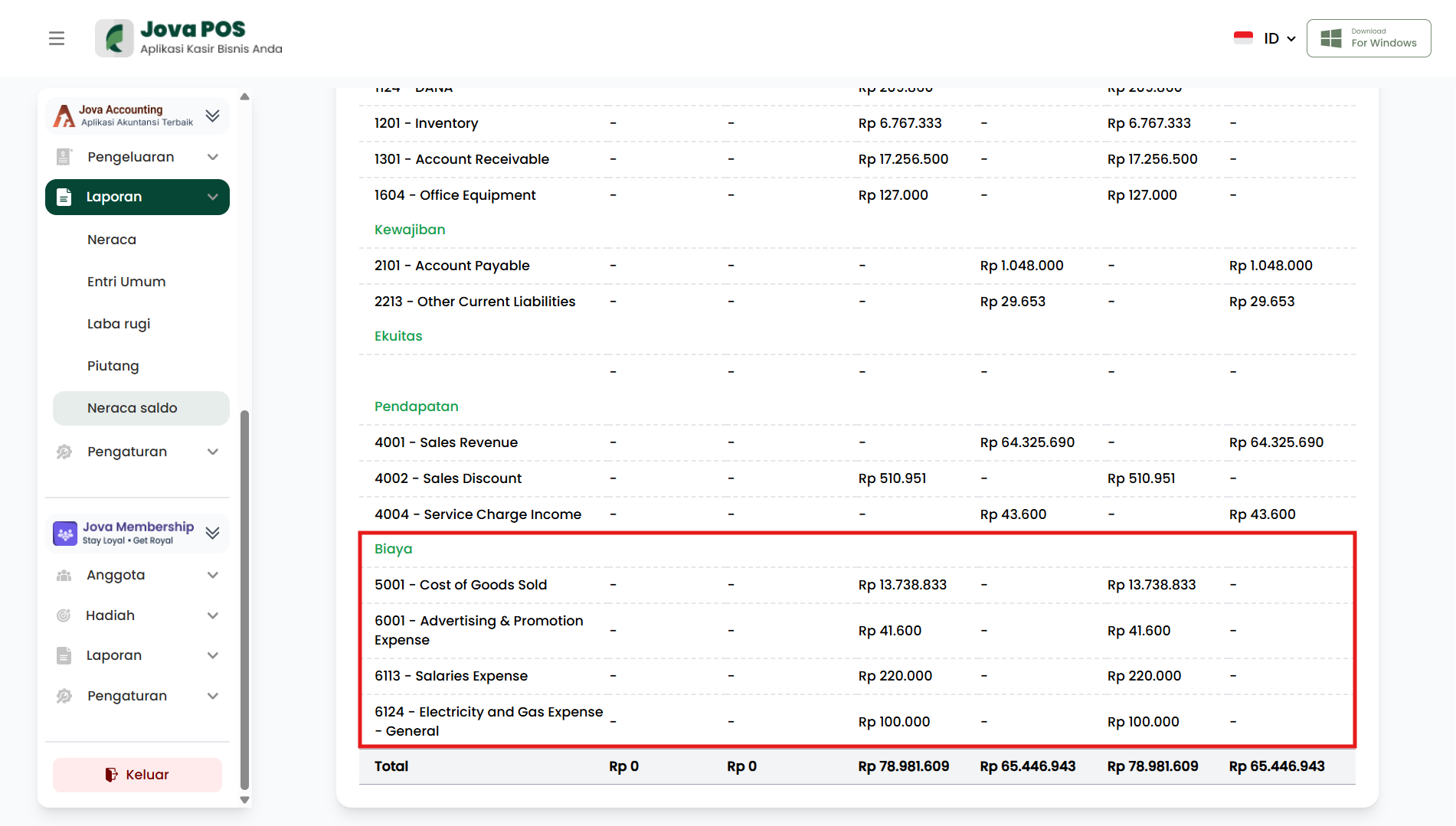
3.5 Expenses
The Expenses section displays costs incurred by the store, such as selling expenses and other operational costs related to store activities.
-
5001 - Cost of Goods Sold
The cost of goods sold. -
6001 - Advertising & Promotion Expense
Costs for advertising and product promotion. -
6113 - Salaries Expense
Salaries paid to employees. -
6124 - Electricity and Gas Expense - General
Electricity and gas costs for store operations.
3.6 Total Balance
At the bottom of the trial balance report, the system displays Total Balance which includes the total of all accounts, both Assets, Liabilities, Equity, Revenue, and Expenses. This total balance is important to ensure the balance between Assets and Liabilities + Equity, which must always be balanced.
-
Total Assets
The total amount of all Assets. -
Total Liabilities and Equity
The total amount of liabilities and equity owned by the store. -
Total Trial Balance
The total balance showing the balance between Assets and Liabilities + Equity.
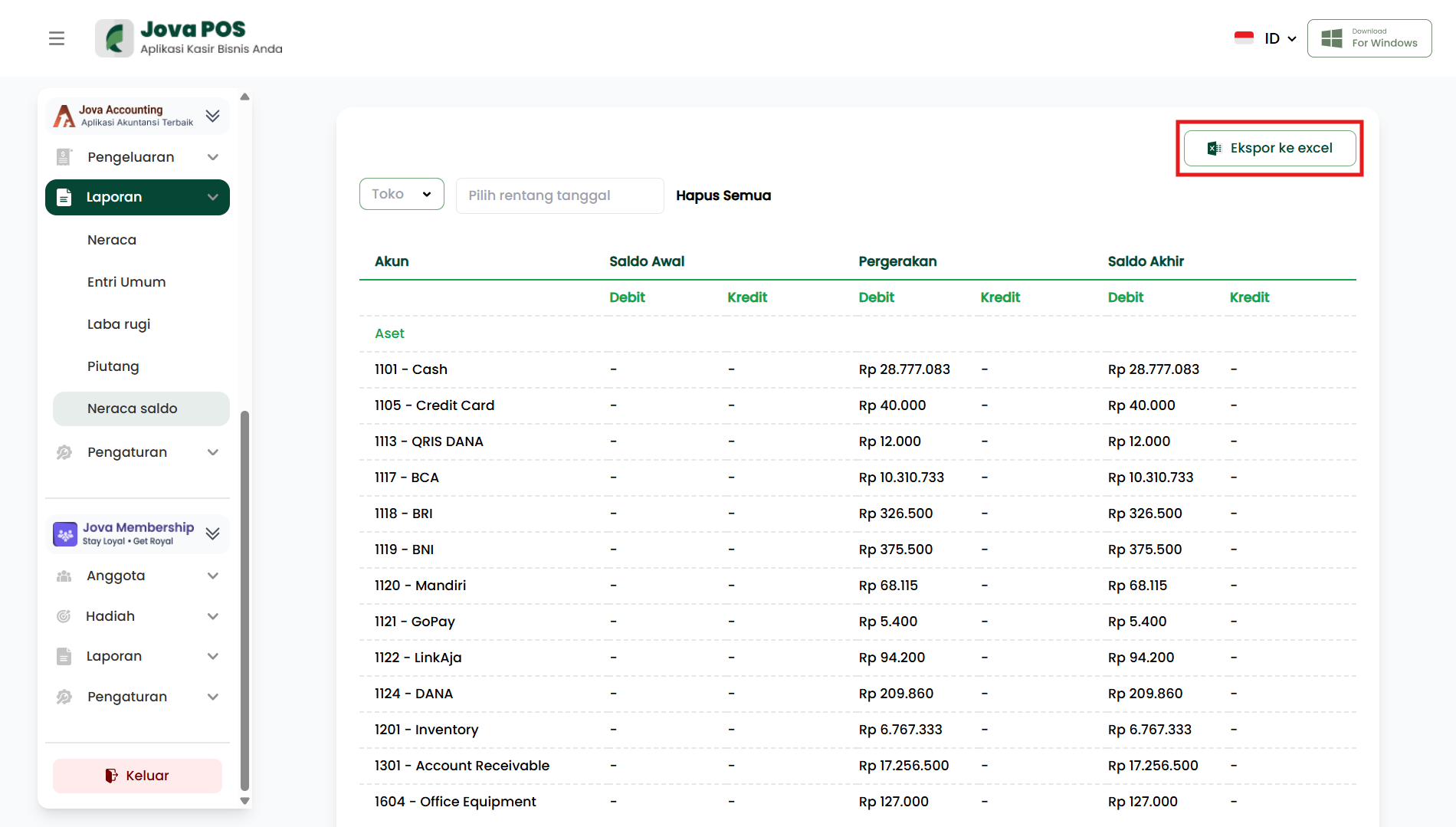
4. Exporting the report to Excel
If you want to save the report or process it further, use the export feature.
- Make sure the Store and date range are correct.
- Click the Export to Excel button at the top right.
- The system will download the report file in Excel format.